Smart Translation Editor for Faster Localization
Get it Free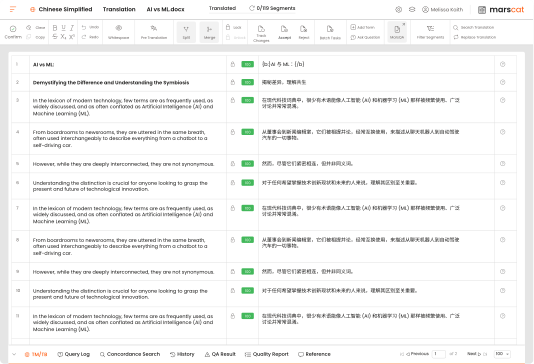
Editor Features & Capabilities
-
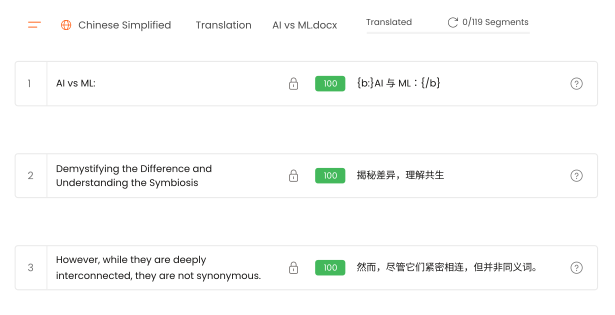
Segment-Based Translation Workflow
A structured workflow that enables linguists to translate at scale. It ensures every segment is processed with precision, supports automation, and maintains full visibility. Featuring:
- Auto-segmented content
- Merge & split segments
- Batch action support
-
Real-Time TM/TB Integration
Provides instant access to translation memory and term bases within the editor, ensuring every segment is aligned with approved terminology. It improves consistency and decision-making for translators. Featuring:
- Live TM/TB suggestions
- Concordance search
- Terminology enforcement during QA

-
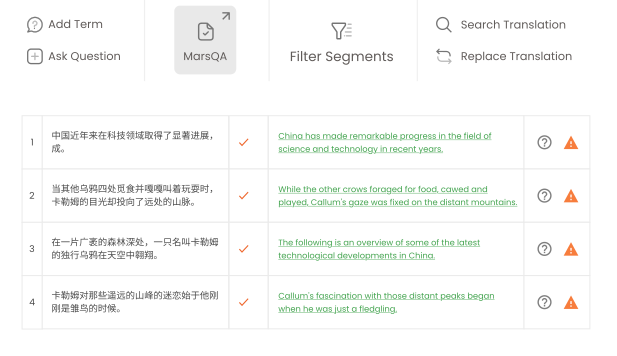
Built-In QA with Automated Reporting
Delivers automated error detection and QA validation inside the editor. It ensures translations meet enterprise quality standards by identifying errors and generating QA reports. Featuring:
- MarsQA automated quality checks
- Error categorization & severity labels
- One-click QA report generation
-
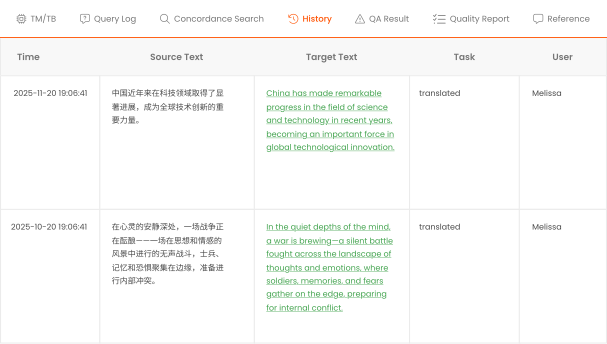
Revision Control & Batch Editing Tools
Offers complete oversight of translation, editing, and proofreading processes. It helps review, refine, and approve content efficiently—whether resolving individually or applying batch updates. Featuring:
- Track changes mode
- History tracking (who changed what + when)
- Batch actions: lock/unlock segments, confirm all, etc.
-
Collaboration & Reference Features
Brings communication, context, and reference materials together, allowing teams to work efficiently. Translators and reviewers can discuss issues, access reference files, and maintain segment traceability. Featuring:
- Query log (comments, replies, discussions)
- Reference file panel
- Translation history per segment

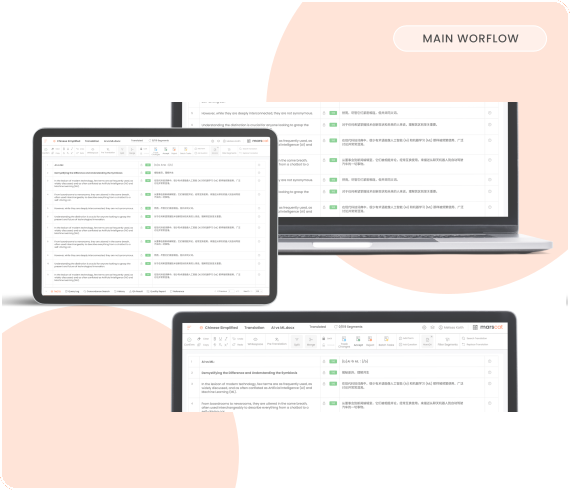
Main Editors Workflow
Enter Editor
Opens the file and auto-splits it into numbered segments (source–target).
Translate
Translate segment by segment; TM/TB matches display automatically.
Confirm Segment
Use Ctrl + Enter to confirm translation and save to TM.
Use TM & TB
Right-click → Concordance Search to find related terms or phrases.
Quality Check
Built-in QA tool for translation quality verification.
Deliver Translation
Click Deliver → Create QA Report → Verify → Deliver.
Keyboard Shortcuts For Faster Editing
Boost translation productivity with intuitive keyboard shortcuts. Quickly confirm segments, navigate rows, apply batch actions, manage tracked changes, and perform fast concordance searches.


 contact@marshub.com




Copyright © 2002 - 2026. All rights reserved